Key takeaways
- Task Manager → Performance shows your CPU, RAM, GPU and drives in one place.
- Compare your GPU first. It’s usually the deciding part for games.
- “Minimum” usually means low settings at 1080p. “Recommended” is what most people should aim for.
Before you buy a game, or claim a free one, it helps to know whether your PC can handle it. You don’t need extra software. Windows already tells you everything.
Step 1: Find your specs
- Press Ctrl + Shift + Esc to open Task Manager.
- Open the Performance tab.
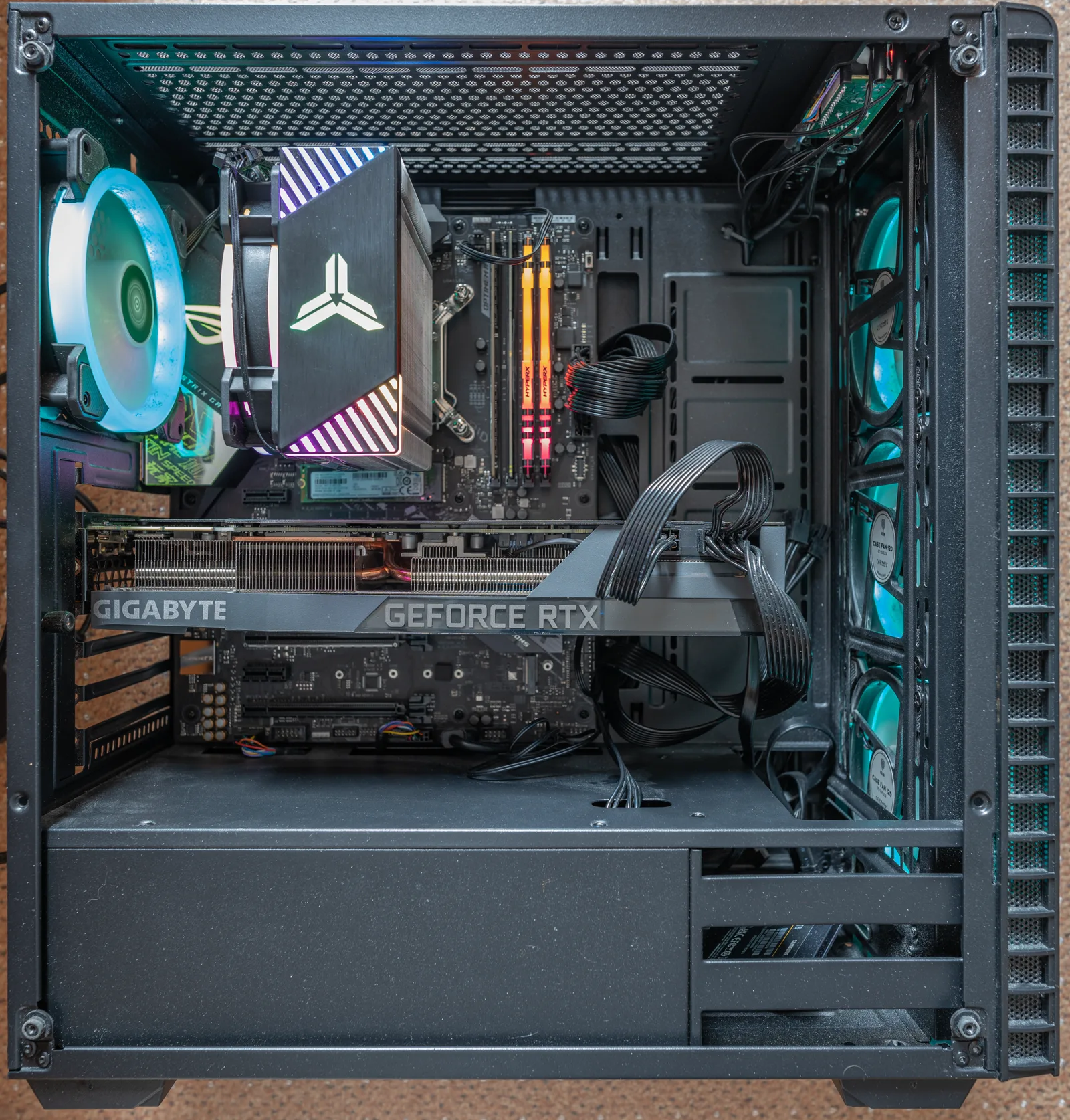
- Click CPU (name and core count), Memory (total RAM) and GPU (graphics card and its dedicated memory).
Another option: press Win + R, type dxdiag and press Enter. The Display tab lists your GPU and DirectX feature level.
Step 2: Read the requirements properly
- GPU: compare generation and tier, not just the memory size. A newer midrange card often beats an older high-end one.
- CPU: core count and generation matter more than clock speed alone.
- RAM: 16GB is the common recommendation now.
- Storage: many new games list an SSD as required. Check free space too.
- OS and DirectX: some games need Windows 10/11 64-bit and DirectX 12.
Step 3: If you’re just below the minimum
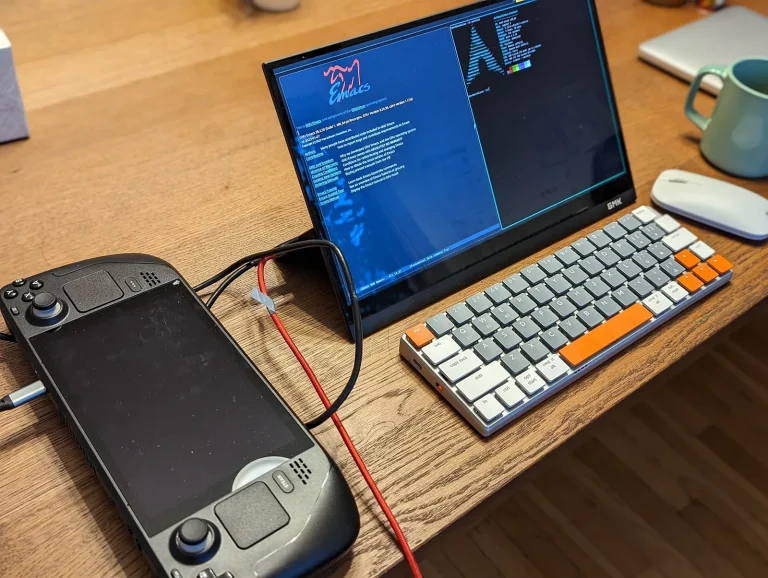
Update your graphics drivers, use the game’s upscaling options (DLSS, FSR or XeSS), lower the resolution and close background apps. If you’re planning an upgrade, start with our beginner PC build checklist. Gaming on a handheld PC? See our Steam Deck tips. Looking for something free to test? Try this week’s free games.