Key takeaways
- You need a TV or monitor with an HDMI 2.1 port that supports 120Hz, and the right cable.
- PS5: Settings → Screen and Video → Video Output. Set “Enable 120 Hz Output” to Automatic and turn VRR on.
- Each game decides whether it offers a 120Hz mode. Look in the game’s own graphics menu.
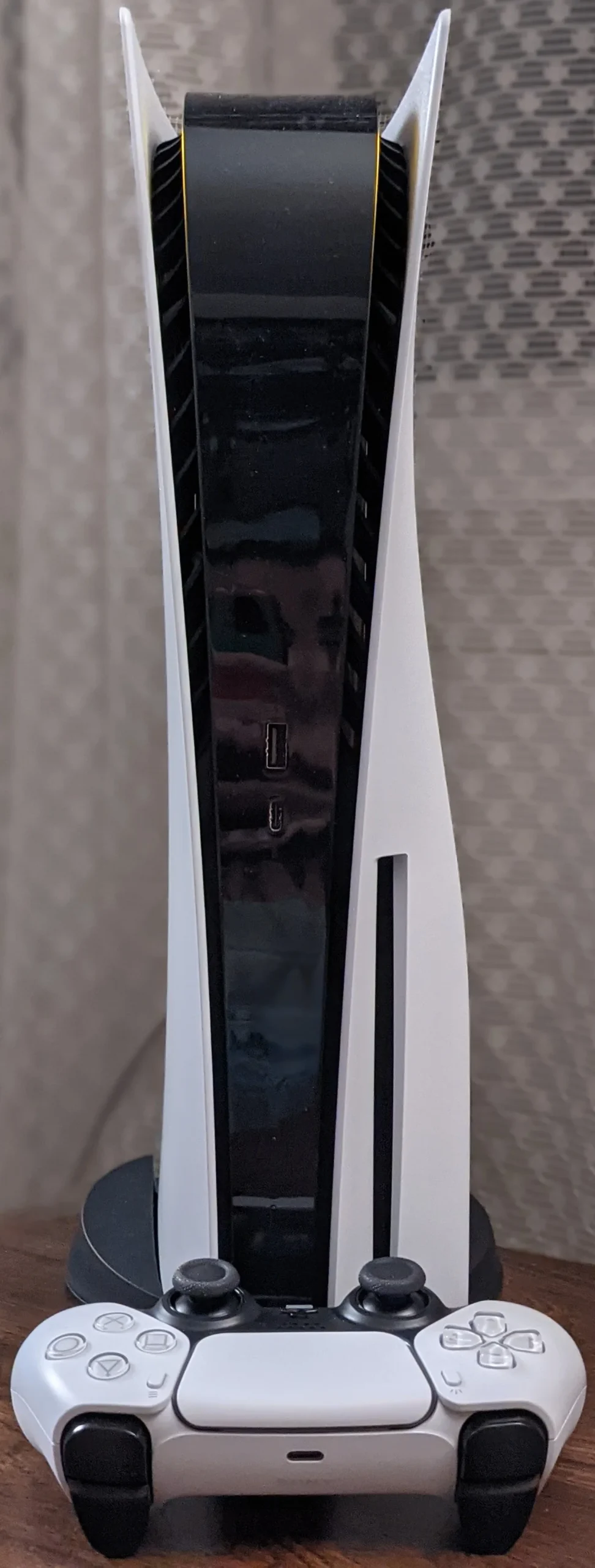
The PS5 supports HDMI 2.1, 4K at 120Hz and VRR, but none of it works unless your TV and settings line up. Here’s the checklist.
Before you start
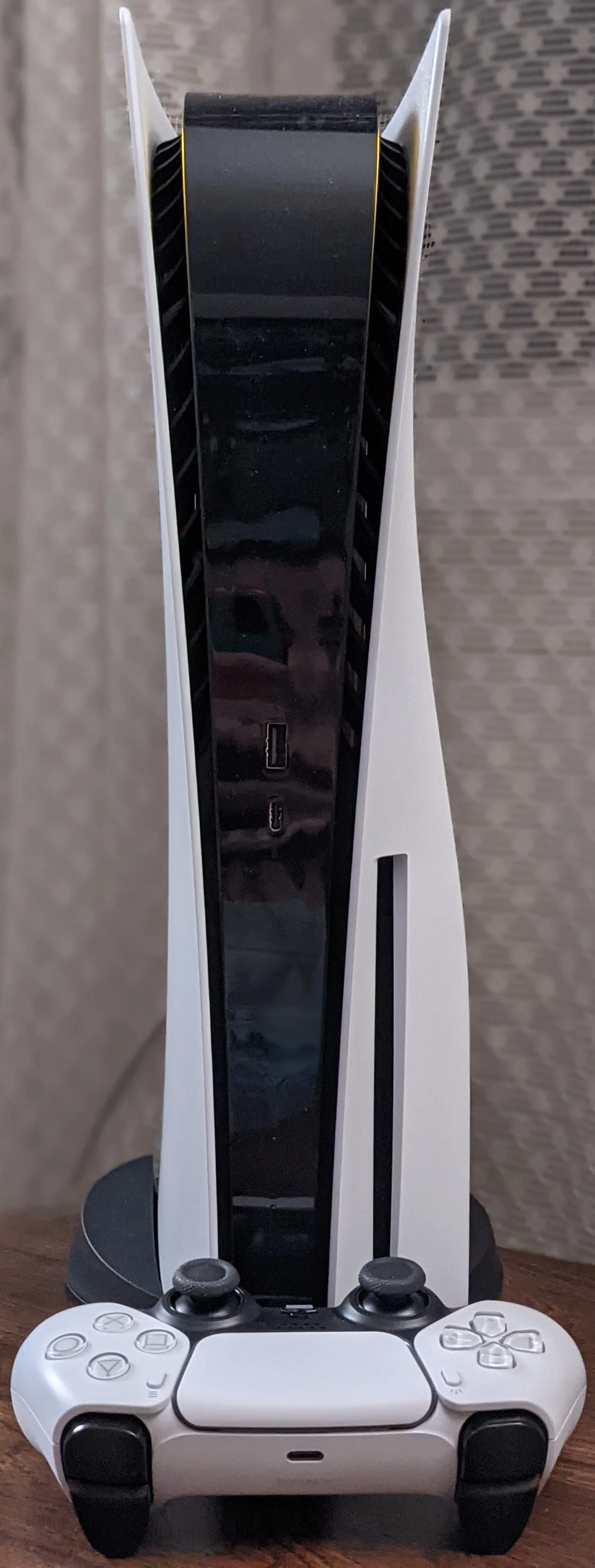
- Plug the PS5 into the TV’s HDMI 2.1 / 4K 120Hz port. On many TVs it’s only one or two specific inputs.
- Turn on the TV’s enhanced HDMI signal setting for that port. The name differs by brand: “Input Signal Plus”, “HDMI Enhanced Format”, “HDMI Ultra HD Deep Color” and so on.
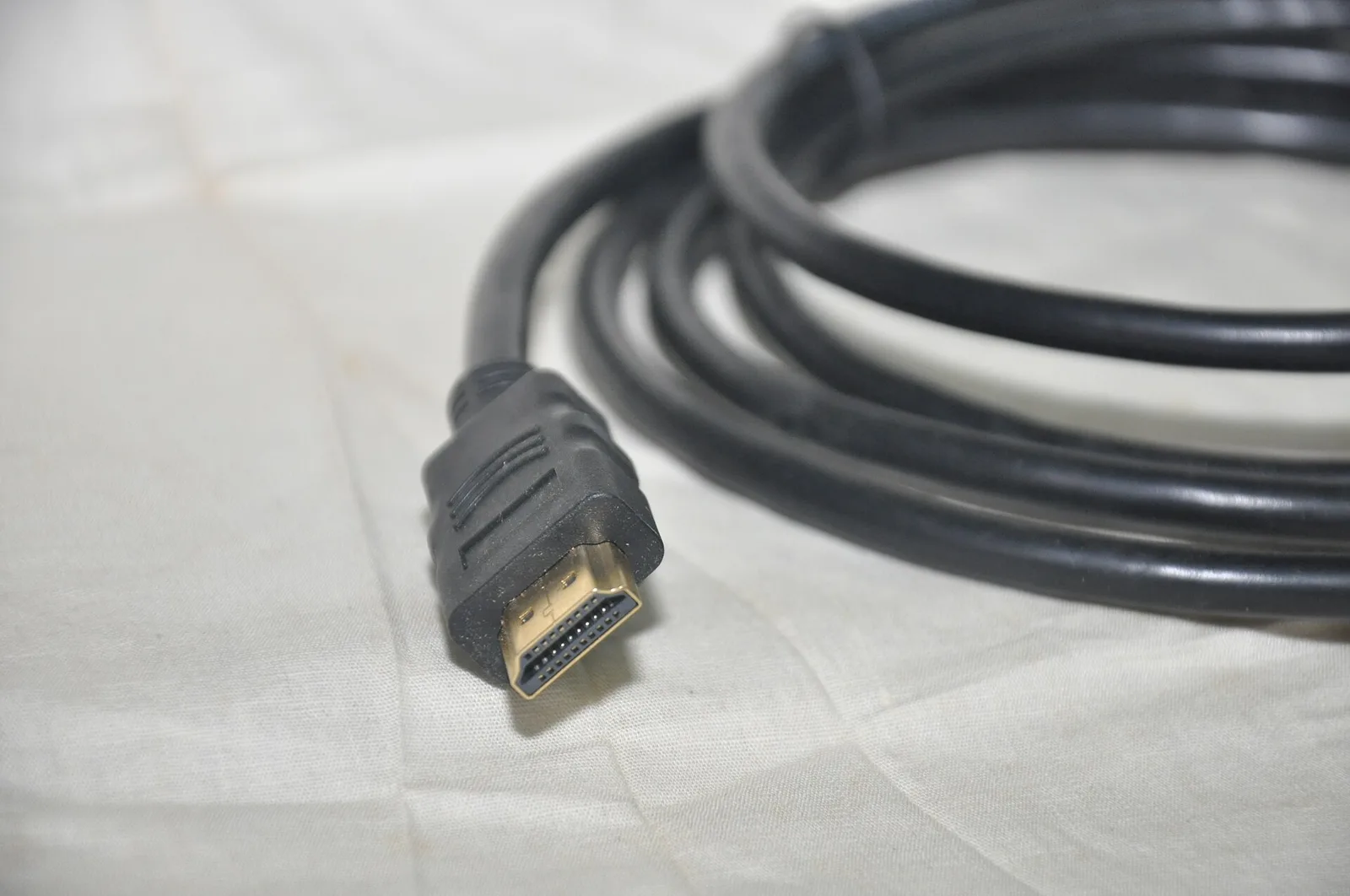
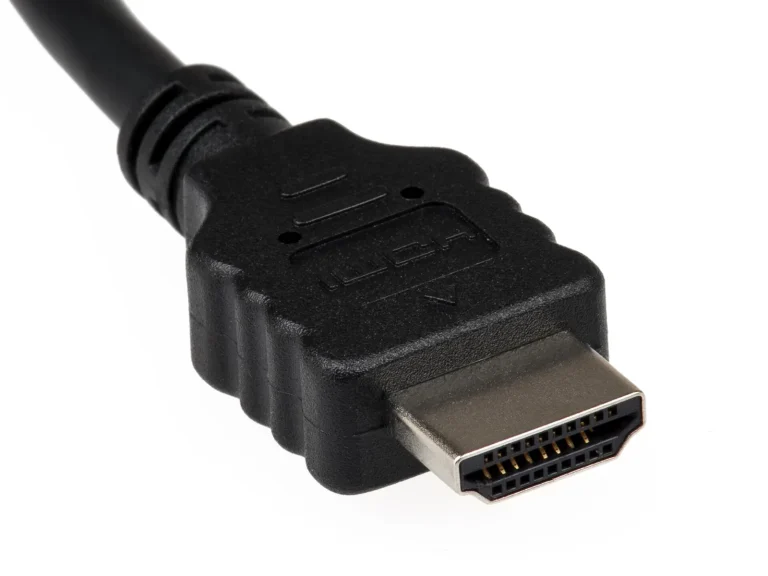
- Use the cable that came with the PS5, or an Ultra High Speed HDMI cable.
PS5 settings
- Go to Settings → Screen and Video → Video Output.
- Set Enable 120 Hz Output to Automatic.
- Set VRR to Automatic. You can also try Apply to Unsupported Games. Sony says to turn it off if you notice problems.
- Check Information for the Connected HDMI Device to confirm the TV reports 120Hz and VRR support.
In-game
Many games have a “Performance” or “120Hz” mode in their own settings, and some ask you to turn on 120Hz in the menu. Without it, the PS5 outputs 60Hz.
Troubleshooting
- Black screen or flicker: swap the cable, try another HDMI 2.1 port, or update the TV’s firmware.
- VRR option is grayed out: the TV isn’t reporting HDMI 2.1 VRR on that input. Check the TV’s settings.
- Soundbar or AV receiver in the chain: it also has to pass 4K 120Hz through. Otherwise, connect the PS5 directly to the TV and send audio over eARC.
For the technical background, see HDMI 2.1 explained. Getting ready for GTA VI? Start with freeing up PS5 storage.
.jpg)
