Key takeaways
- Confirm compatibility first: CPU socket, RAM type, case size and power-supply connectors.
- Build in a sensible order and test before closing up the case.
- Install drivers and run stability checks before you start gaming.
Building your first gaming PC is less difficult than it looks. Modern parts are designed to fit together in only one way, and most problems come from skipped steps rather than lack of skill. This checklist walks through planning, compatibility, assembly and first boot, so you can catch mistakes before they cost you time or money. It does not recommend specific products, because prices and models change constantly; instead it tells you what to check.
Part 1: Planning
Decide what the PC is for
Write down the games you play, your monitor’s resolution and refresh rate, and your total budget including Windows, peripherals and tax. A PC for 1080p esports titles needs very different parts from one aimed at 4K with high settings. The graphics card usually has the biggest effect on gaming performance, so budget for it first and size the rest of the build around it.
The core parts list
- CPU (processor)
- CPU cooler (some CPUs include one in the box; many do not)
- Motherboard
- RAM (memory)
- Storage (an NVMe M.2 SSD is the normal choice for the system drive)
- Graphics card (GPU)
- Power supply (PSU)
- Case
- Operating system and a USB flash drive (8 GB or larger) to install it from
Part 2: Compatibility checklist
Tools such as PCPartPicker flag many common conflicts automatically, but double-check these yourself against the manufacturers’ spec pages:
- CPU socket matches the motherboard. AMD and Intel use different sockets, and sockets change between generations (for example AMD AM5, Intel LGA 1700 and LGA 1851).
- Motherboard BIOS supports your CPU. A board may need a BIOS update for newer CPUs. Check the board’s CPU support list. Many boards offer a BIOS flashback button that can update without a CPU installed.
- RAM type matches the board. DDR4 and DDR5 are not interchangeable. Check the board’s supported speeds and its memory compatibility list (QVL).
- Cooler fits the socket and the case. Check the mounting hardware for your socket, the tower cooler’s height against the case’s maximum, or the radiator size against the case’s mounting points.
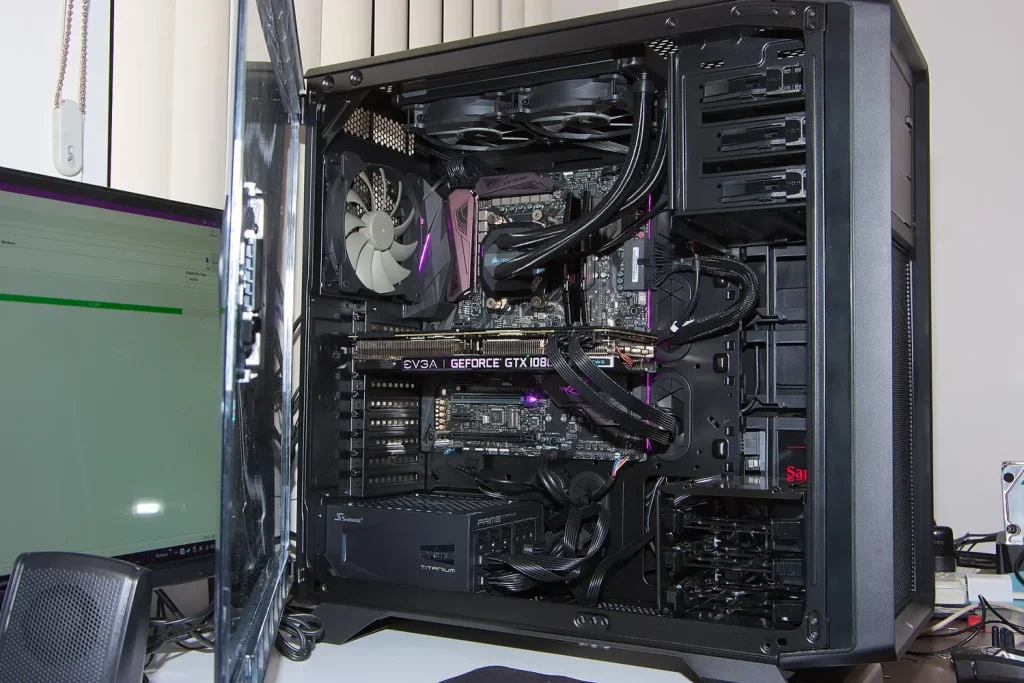
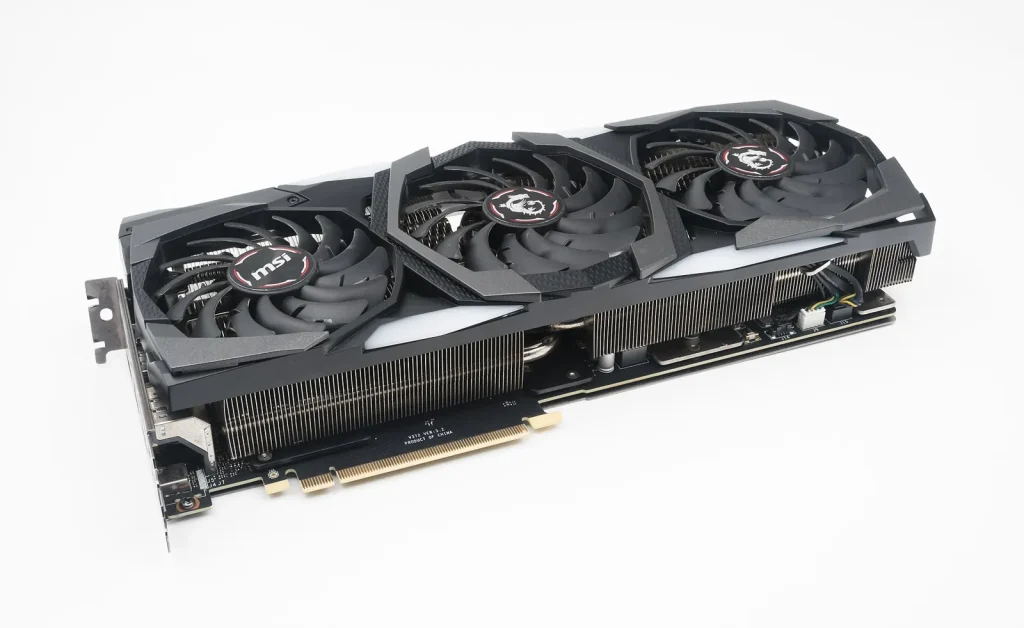
- GPU fits the case. Compare the card’s length and thickness with the case’s GPU clearance, remembering front fans or radiators can reduce it.
- PSU wattage and connectors. Use the GPU maker’s recommended PSU wattage as a minimum. Many recent cards use a 12V-2×6 (formerly 12VHPWR) connector; an ATX 3.x power supply with a native cable is the cleanest option.
- Case supports the motherboard size. ATX, Micro-ATX and Mini-ITX boards need matching cases.
- M.2 slots. Check how many your board has, which PCIe generation each supports, and whether using one disables any SATA ports or other slots (the manual explains this).
Part 3: Before you start assembling
- Work on a large, hard, well-lit surface. Avoid carpet.
- Have a Phillips #2 screwdriver, ideally magnetic, plus zip ties or Velcro straps and a small bowl for screws.
- Touch the metal of the case or use an anti-static wrist strap to discharge static before handling parts.
- Keep the motherboard manual open. It shows which RAM slots to use first, where the front-panel pins go and which M.2 slot connects to the CPU.
- Download the latest BIOS and chipset drivers from the motherboard maker’s site in advance, along with the Windows installer from Microsoft’s official Media Creation Tool.
Part 4: Assembly order
Many builders assemble the core parts on the motherboard outside the case first, which is easier.
- Install the CPU. Lift the socket lever, align the triangle marker on the CPU with the one on the socket, place it gently without force and close the lever. On Intel boards the plastic cover pops off as you close it; keep it in case you ever need to return the board.
- Install M.2 SSD(s). Remove any heatsink cover, insert the drive at an angle, press it down and secure it. Peel any protective film off thermal pads.
- Install RAM. With two sticks, use the slots the manual recommends (often the second and fourth from the CPU). Press firmly until the clips click.
- Mount the cooler. Check whether thermal paste is pre-applied. If not, a pea-sized dot in the center is enough. Plug the fan into the CPU_FAN header.
- Prepare the case. Install the motherboard standoffs if they are not pre-installed, and the I/O shield if your board does not have it built in.
- Mount the motherboard and screw it in without overtightening.
- Install the PSU and route the main 24-pin, CPU 8-pin (EPS) and GPU cables.
- Install the GPU in the top full-length PCIe slot. Plug in its power cables fully; a 12V-2×6 connector should be completely seated with no gap.
- Connect front-panel cables: power switch, reset, LEDs, USB and audio, following the manual’s diagram.
- Connect fans to the board’s fan headers or a hub.
Part 5: First boot
- Plug the monitor into the graphics card, not the motherboard’s video output.
- Turn on the PSU switch and press the power button.
- Expect the first boot to take longer than usual, especially with DDR5, as the system trains the memory. Do not panic if the screen stays black for a minute or two.
- If it does not get to the BIOS screen, check the debug LEDs or code display on the motherboard and look up the code in the manual.
In the BIOS
- Confirm the CPU, all RAM and your drives are detected.
- Enable the memory profile (XMP for Intel, EXPO for AMD) to run RAM at its rated speed.
- Check the CPU temperature at idle is reasonable.
- Update the BIOS if you have not already.
Part 6: Windows and drivers
- Boot from the USB installer and install Windows to the NVMe drive.
- Install chipset drivers from the motherboard or CPU maker.
- Install the latest graphics driver from NVIDIA, AMD or Intel.
- Run Windows Update.
- In Windows display settings, set your monitor’s refresh rate; it often defaults to 60 Hz.
Part 7: Check stability
Before you call it done, play a demanding game for an hour or run a stress test while watching temperatures with a monitoring tool. Listen for unusual fan noise, check that the GPU and CPU stay within the manufacturers’ stated limits, and make sure there are no crashes. If anything looks off, reseat the relevant component, update drivers or BIOS, and test again.
Common first-build mistakes
- Monitor plugged into the motherboard instead of the GPU.
- Forgetting the CPU 8-pin power cable.
- RAM not fully clicked in or in the wrong slots.
- Leaving the plastic film on the cooler’s contact plate.
- Not enabling XMP/EXPO, then wondering why memory is slow.
- Refresh rate left at 60 Hz.
Take your time, follow the manuals, and your first build will very likely boot on the first try.
Tip: Bookmark this guide. We update it when platforms change their rules or specs.