Key takeaways
- Screen brightness, airplane mode and vibration are the biggest easy battery savers.
- Use Sleep Mode for short breaks and keep system software updated.
- Nintendo Switch 2 uses microSD Express cards only (up to 2 TB) for extra storage.
Nintendo’s handheld hybrids are designed to be played anywhere, which means battery life matters. This guide covers how much battery life to expect on each model, the settings that make the biggest difference, how to look after the battery over the long term and a few ways to keep games running smoothly. The battery estimates below are Nintendo’s official ranges; real results depend heavily on the game.
Official battery life by model
- Nintendo Switch (original 2017 model, HAC-001): about 2.5 to 6.5 hours.
- Nintendo Switch (updated 2019 model, HAC-001(-01)): about 4.5 to 9 hours.
- Nintendo Switch Lite: about 3 to 7 hours.
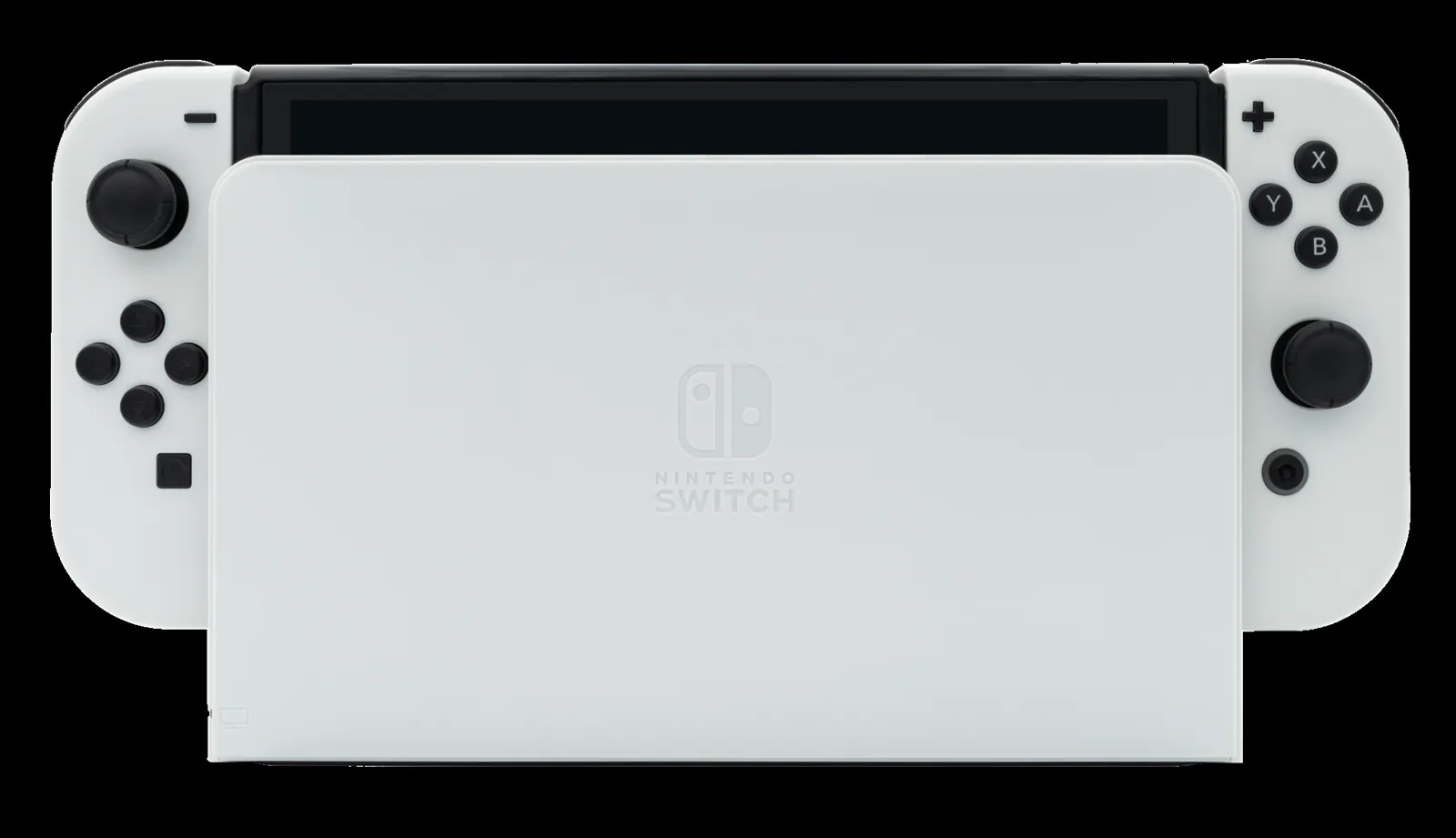
- Nintendo Switch – OLED Model: about 4.5 to 9 hours.
- Nintendo Switch 2: about 2 to 6.5 hours.
The low end of each range is what you can expect from demanding 3D games; lighter games sit near the top. If you have an original Switch, check the serial number on the bottom: the improved-battery model’s serial begins with “XKW”.
Settings that save the most battery
1. Lower the screen brightness
The screen is one of the largest power draws. Drop brightness in Quick Settings (hold the HOME button) to the lowest level you find comfortable. Auto-brightness helps if you move between rooms, though manual control usually saves more.
2. Use airplane mode when you do not need the internet
Turning on airplane mode disables Wi-Fi and Bluetooth radios. You can re-enable Wi-Fi separately inside airplane mode if a game needs it, and on supported models you can allow Bluetooth audio too. This is especially worthwhile on a plane, train or long car trip.
3. Turn off controller vibration
Rumble uses power in the Joy-Con or Joy-Con 2 controllers and, when attached, the console provides their charge. You can turn vibration off in System Settings > Controllers and Sensors.
4. Disconnect what you are not using
Wireless controllers, Bluetooth headphones and accessories that draw USB power all add to drain. Disconnect them when you are playing alone in handheld mode.
5. Use Sleep Mode for short breaks
Sleep Mode uses very little power and lets you resume instantly. For longer storage, power the console fully off (hold the POWER button and select Power Options > Turn Off).
6. Lower the volume or use wired headphones
Speaker volume has a modest effect. Wired headphones avoid Bluetooth power use entirely.
Charging properly
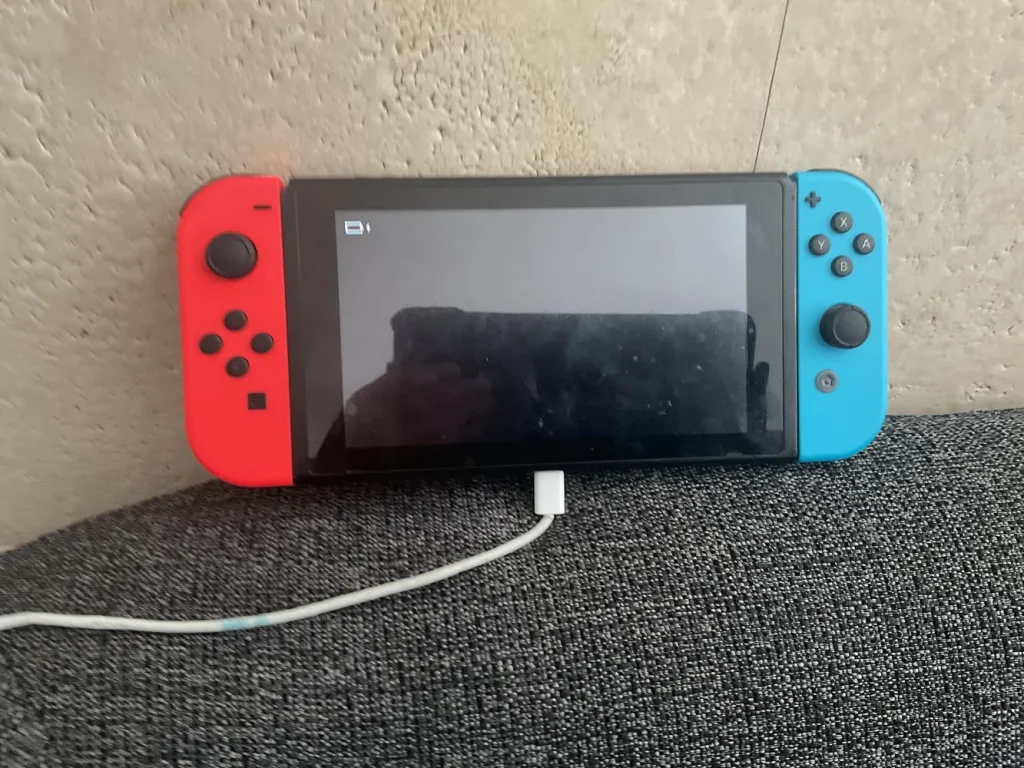
- Use the official Nintendo AC adapter or a reputable USB-C Power Delivery charger that meets Nintendo’s requirements. The original Switch adapter supplies 15 V at 2.6 A; cheap, unbranded chargers and docks have been linked to console damage.
- To charge on the go, a USB-C PD power bank works well. Choose one with an output rating that matches the console’s needs and a recognized brand.
- Charging is faster when the console is in Sleep Mode or turned off.
- If a console has been sitting with a fully drained battery for a long time, charge it for a few hours before trying to power it on.
Looking after the battery long term
Like all lithium-ion batteries, the Switch’s battery gradually loses capacity over years of use. You cannot stop that, but you can slow it down.
- Avoid heat. Nintendo lists an operating environment of 5 °C to 35 °C (41 °F to 95 °F) and 20–80% humidity. Do not leave it in a hot car or in direct sun.
- Do not store it empty. If you will not use it for weeks or months, charge it partway first and top it up occasionally. A completely drained lithium-ion battery left for a long time can be harder to revive.
- Let it breathe. When docked or charging, keep the vents clear. Avoid charging inside a case or under a blanket.
- Battery replacement should be handled through Nintendo’s official repair service. Nintendo states the internal battery is not user-removable, and opening the console yourself may affect your warranty.
Keeping performance smooth
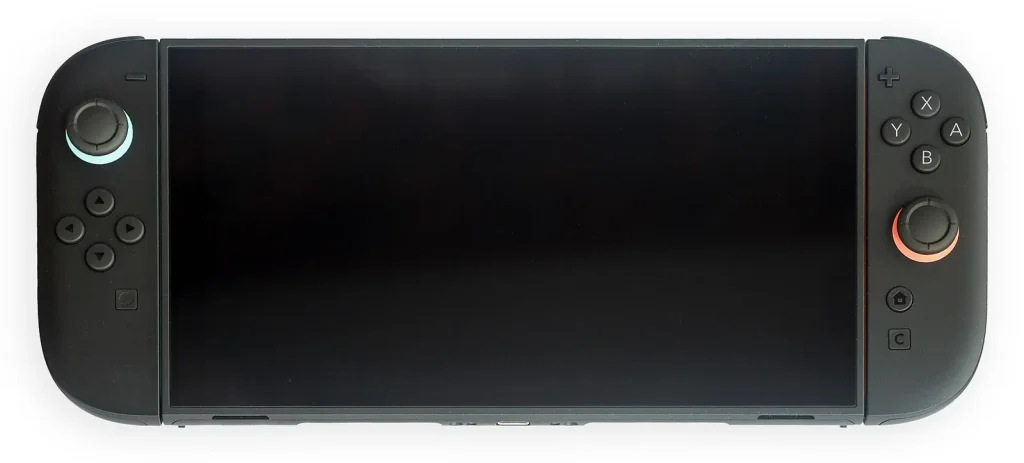
There is no official way to overclock a Switch, and unofficial methods can void warranties and violate Nintendo’s terms. What you can do:
Keep system software and games updated
Updates often include performance and stability fixes. Check System Settings > System for the console, and allow automatic software updates for games.
Manage storage
Low free space can slow down downloads and updates. Use Data Management in System Settings to archive software you are not playing; archiving removes the game data but keeps your save data and icon, so you can redownload it later.
Use the right microSD card
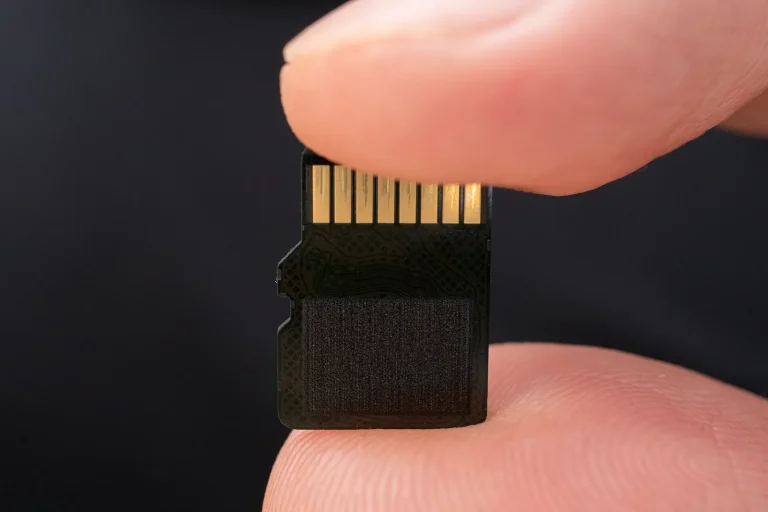
- Switch, Switch Lite and Switch OLED: microSD, microSDHC and microSDXC cards. A UHS-I card with fast read speeds (Nintendo suggests a transfer speed of 60–95 MB/s) loads faster.
- Switch 2: only microSD Express cards (up to 2 TB) can be used for game data. Standard microSD cards can only be used to copy screenshots and videos from a Nintendo Switch.
Buy cards from known brands and authorized sellers. Counterfeit cards often report a false capacity and can corrupt data.
Restart occasionally
If a game starts stuttering after weeks of sleep-mode use, a full power off and restart clears temporary memory and often helps.
Docked mode tips
In TV mode, make sure the dock has room for airflow and is connected to the official power adapter. Many games run at a higher resolution in TV mode, and battery life is not a concern while docked.
Quick checklist
- Lower brightness first; it is the biggest win.
- Use airplane mode and turn off vibration on long trips.
- Sleep for short breaks, power off for long ones.
- Charge with official or reputable USB-C PD chargers.
- Keep it cool and never store it empty.
- Update software, archive unused games and use the right microSD card.
These habits will not turn a demanding game into a nine-hour session, but they will get you noticeably more play time and keep your console healthy for years.
Tip: Bookmark this guide. We update it when platforms change their rules or specs.