Key takeaways
- PS5 takes an internal M.2 NVMe SSD; Xbox Series X|S uses the Storage Expansion Card for current-gen games.
- USB drives on both consoles are great for older games and for storing current-gen games, which must be moved back to internal storage to play.
- Pick based on what you play and how fast your internet is.
Modern console games are large, and the built-in storage on PlayStation 5 and Xbox Series X|S fills up fast. Both consoles can be expanded, but the rules are different, and buying the wrong drive is an easy and expensive mistake. This guide explains what each console supports, which games can be played from which kind of storage, and what to check before you buy. The specifications here come from Sony’s and Microsoft’s own support documentation; always confirm against the current official pages, as requirements can change with system updates.
How much space do you actually have?
The advertised capacity is not what you get for games, because the system software reserves part of the drive.
- Original PS5 (825 GB SSD): roughly 667 GB available for games and apps.
- PS5 Slim and later models (1 TB): around 848 GB available. The PS5 Pro ships with 2 TB.
- Xbox Series X (1 TB): about 802 GB usable.
- Xbox Series S (512 GB): about 364 GB usable. A 1 TB Series S model was added later.
With many big games taking 100 GB or more including updates, a handful of installs can fill a console.
The two kinds of expansion
Both consoles separate storage into two categories:
- High-speed internal-class storage that can run current-generation games: an M.2 SSD on PS5, a Storage Expansion Card on Xbox Series X|S.
- USB extended storage: cheaper external drives that are good for storing games and playing older-generation titles, but cannot run most current-gen games directly.
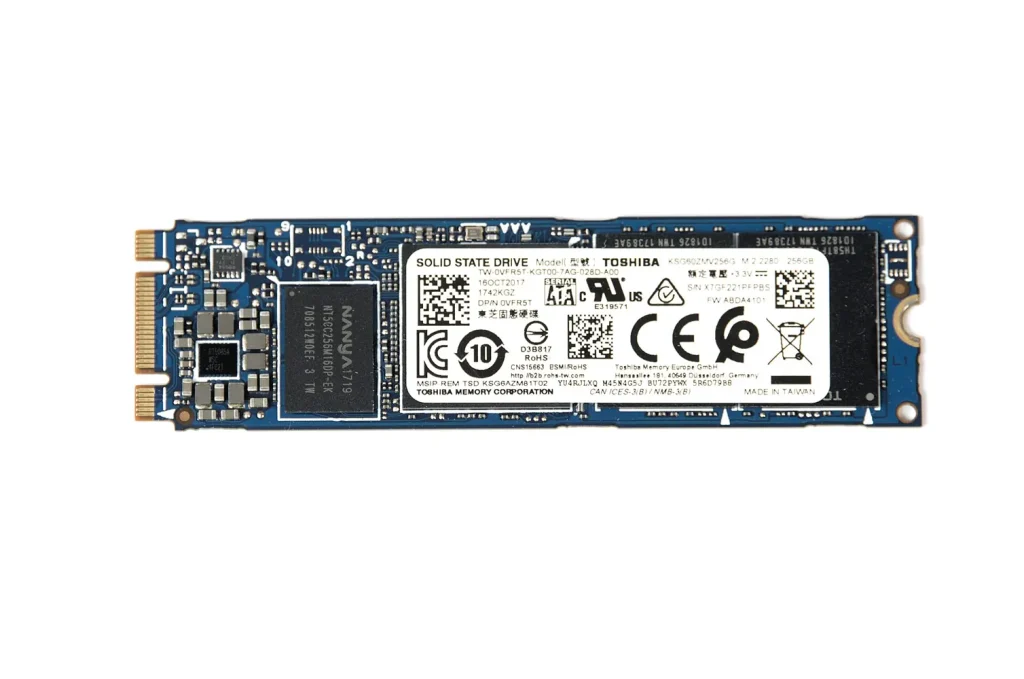
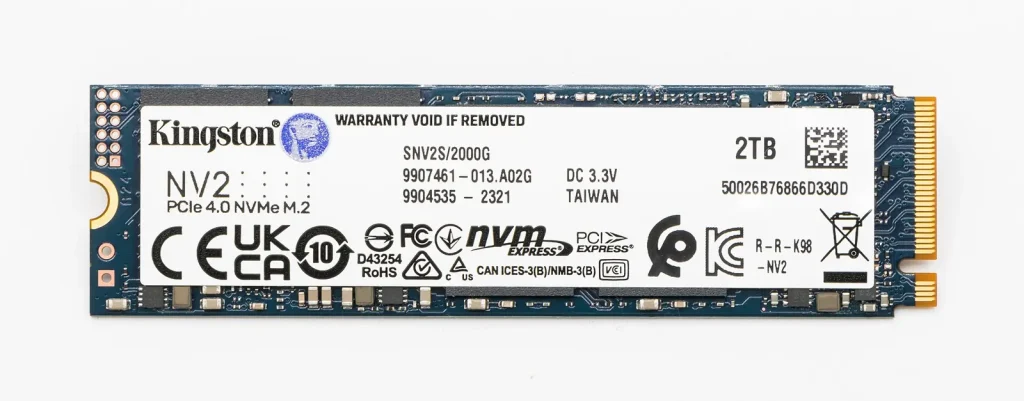
PlayStation 5: adding an M.2 SSD
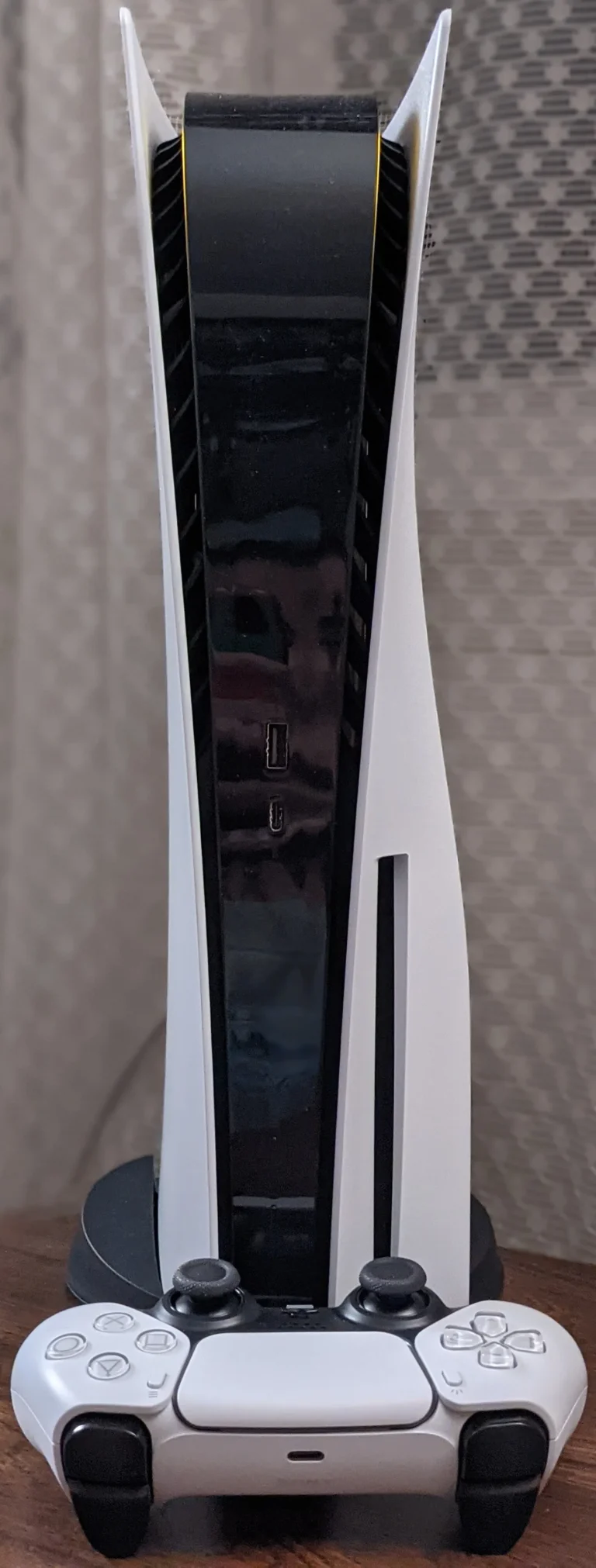
Every PS5 model has an internal M.2 expansion slot. Sony’s published requirements are:
- Interface: PCIe Gen4 x4 M.2 NVMe SSD (M key). M.2 SATA drives are not supported.
- Capacity: 250 GB to 8 TB.
- Form factors: 2230, 2242, 2260, 2280 and 22110. 2280 is the most common.
- Sequential read speed: 5,500 MB/s or faster is recommended.
- Size with cooling: up to 25 mm wide and 11.25 mm thick (up to 8 mm above the board and 2.45 mm below).
- Cooling is required. Sony says to use a heatsink or heat transfer sheet. Many drives are sold with a PS5-compatible heatsink already attached.
Sony also notes that the PS5 does not support Host Memory Buffer (HMB), so DRAM-less drives that rely on HMB may perform worse than their spec sheet suggests. And even a drive faster than 5,500 MB/s is not guaranteed to match the internal SSD in every game.
Installing it
You need a #1 Phillips screwdriver and a clean, well-lit surface. Update the console’s system software first, power it fully off, unplug it, and touch a grounded metal object to discharge static. On the original model you slide off a side cover; on the Slim-style models you remove a small cover panel. Remove the slot cover screw, set the spacer to your drive’s length, insert the drive at an angle, screw it down and close everything up. When you power on, the PS5 prompts you to format the drive, which erases anything on it.
After that you can download, update and play PS5 and PS4 games from the M.2 drive and set it as the default install location in Settings > Storage > Installation Location.
PlayStation 5: USB extended storage
A USB drive connected to a PS5 can:
- Play PS4 games directly.
- Store PS5 games, which must be copied back to internal or M.2 storage before you can play them.
Sony lists 250 GB to 8 TB and a SuperSpeed USB 5 Gbps or faster connection. Use one of the rear USB ports, and do not connect it through a hub. Copying a game back from USB is usually much faster than re-downloading it on a slow connection, so this is a good way to keep an archive.
Xbox Series X|S: the Storage Expansion Card
Xbox does not use a standard M.2 slot. Instead, there is a proprietary Storage Expansion slot on the back of the console. Officially licensed cards plug straight in, no tools required, and are designed to match the internal SSD’s performance, including Quick Resume.
Current options are made by Seagate (listed by Microsoft in 1 TB, 2 TB and 4 TB versions) and Western Digital (the WD_BLACK C50, in 512 GB, 1 TB and 2 TB). Because the format is proprietary, these cards usually cost more per terabyte than a normal M.2 drive of the same size. As with any drive, usable space is a bit lower than the label.
Games optimized for Xbox Series X|S can be installed to and played directly from the card, and you can move the card between consoles.
Xbox Series X|S: USB external drives
Microsoft’s requirements for external storage are USB 3.1 Gen 1 or faster and at least 128 GB. On an external USB drive you can:
- Play Xbox One, Xbox 360 and original Xbox games that are backward compatible.
- Store Xbox Series X|S optimized games, which must be moved to internal storage or an expansion card before playing.
A fast USB SSD makes these transfers quicker than a spinning hard drive, but an inexpensive hard drive is fine for archiving or for a large library of older games.
Which option should you choose?
If you mostly play new releases
Go for the high-speed option: an M.2 SSD with heatsink on PS5, or an Expansion Card on Xbox. It is the only way to play current-gen games without shuffling files.
If you play a lot of older games
A large USB drive is the best value. PS4 games on PS5 and Xbox One-era games on Xbox Series consoles play from USB.
If you have slow internet
Pair a modest high-speed upgrade with a big USB drive as an archive. Moving a game back from USB is often quicker than downloading it again.
Common mistakes to avoid
- Buying an M.2 SATA or PCIe Gen3 drive for PS5. It will not meet Sony’s requirements.
- Choosing a large aftermarket heatsink without checking the height limit, so the PS5 slot cover will not close.
- Trying to fit a normal M.2 drive into an Xbox. The Xbox expansion slot is proprietary; third-party adapters are not officially supported.
- Expecting to play current-gen games from USB on either console.
- Forgetting that formatting a new drive erases it.
Quick summary
- PS5: PCIe Gen4 NVMe M.2, 250 GB–8 TB, heatsink required, 5,500 MB/s recommended. USB for storage and PS4 games.
- Xbox Series X|S: official Seagate or WD_BLACK Expansion Card to play current-gen games; USB 3.1 Gen 1 or faster, 128 GB or more, for storage and older games.
Check the official requirements once more right before you buy, and you will add space without any surprises.
Tip: Bookmark this guide. We update it when platforms change their rules or specs.