Key takeaways
- Quick Resume keeps several suspended games ready, so you can jump back in seconds.
- Pin the games you play most so they don’t drop out of the list. Remove a game if it misbehaves after resuming.
- Series X|S games play only from internal storage or an official expansion card. USB is for storing them and for playing older games.
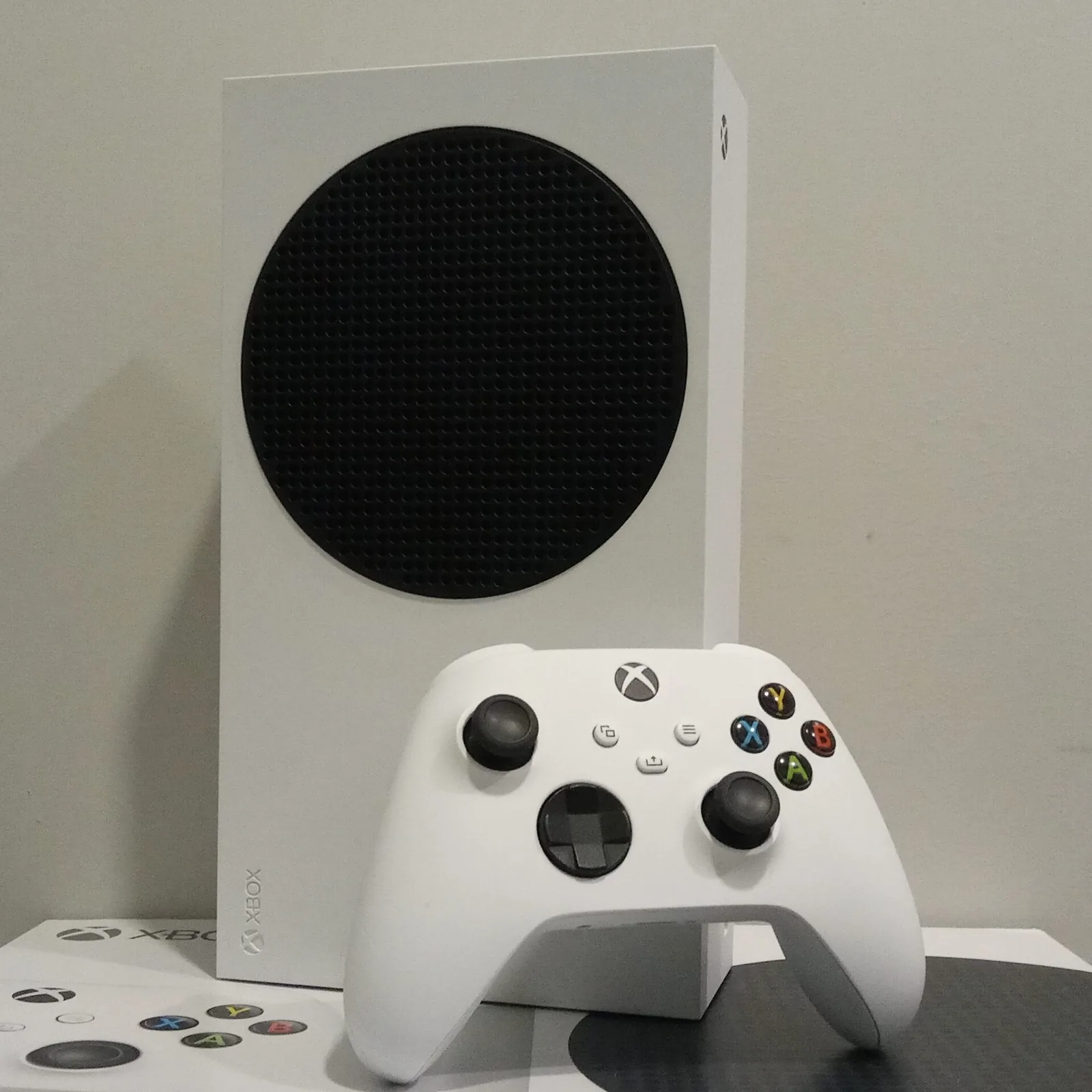
Quick Resume is one of the best features on Xbox Series X|S, and storage management is one of the most confusing. Here’s how to use both.
How Quick Resume works
When you switch from one game to another, the console saves the first game’s state so you can return to the same moment later, even after the console has been in sleep mode. Online games usually reconnect you to the menu or lobby, not the middle of a match.
Managing the Quick Resume list
- Open My games & apps.
- Use the filter to show the Quick Resume group.
- Highlight a game and press the Menu button to pin it, or to remove it from Quick Resume.
If a game crashes or acts strangely after resuming, removing it from Quick Resume and launching it fresh usually fixes it.

Storage: what goes where
- Internal SSD and Storage Expansion Card: play anything, including Series X|S-optimized games.
- External USB 3.x drive: play Xbox One, Xbox 360 and original Xbox games. Store Series X|S games and move them back when you want to play.
Go to Settings → System → Storage devices to see each drive. Open a game’s Manage game and add-ons page to remove parts you don’t need, such as extra language packs or campaign add-ons.
Big launches coming
Getting ready for GTA VI? Follow our storage prep guide. For new Game Pass downloads, see what’s new on Game Pass. And storage expansion explained compares the options in more depth.