Key takeaways
- The biggest wins are a frame-rate limit, lower brightness and a TDP cap.
- Use the Quick Access menu (… button) → Performance, and save a profile per game.
- Valve rates the OLED at 3–12 hours and the LCD at 2–8 hours, depending on the game.
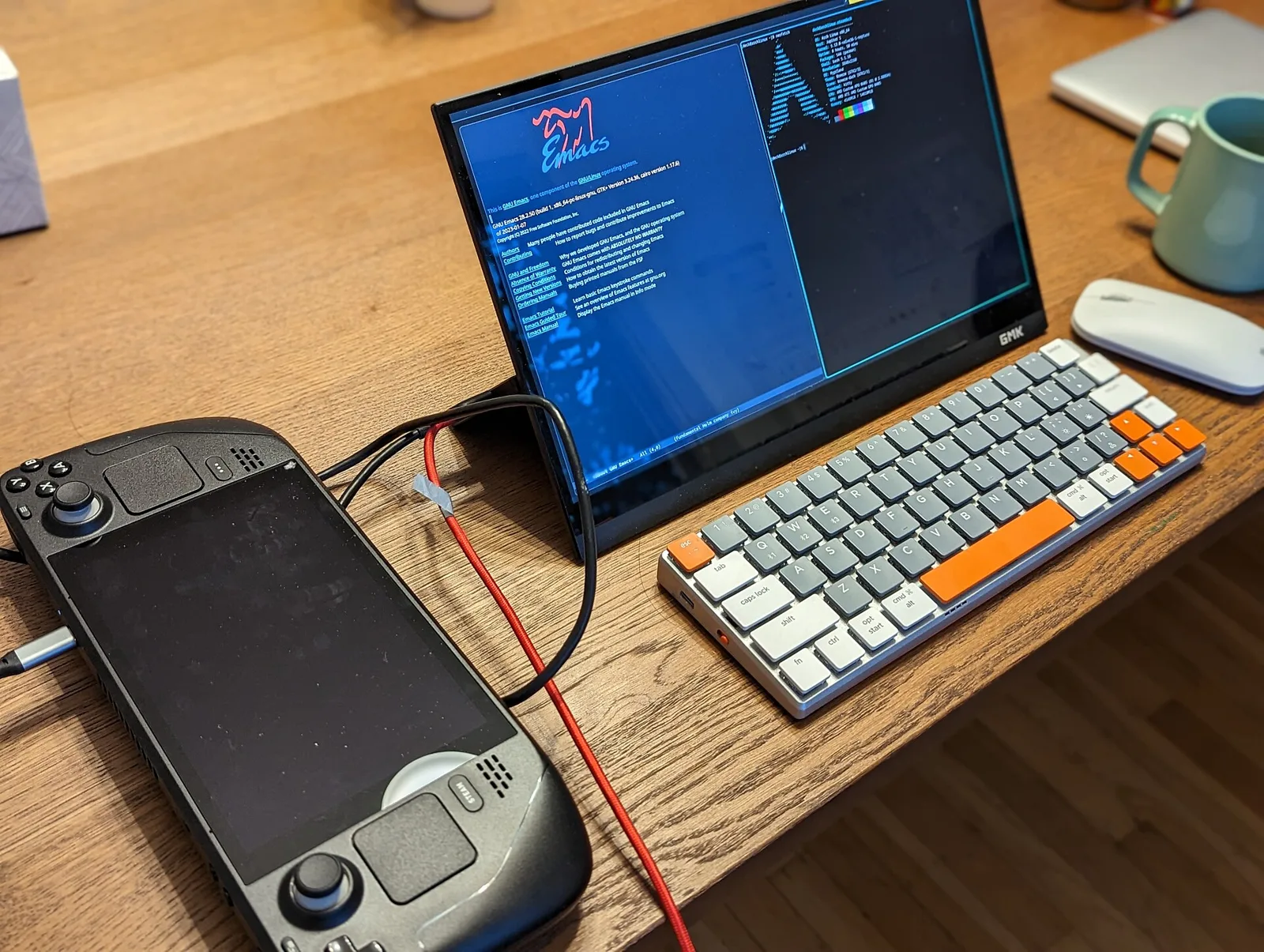
Steam Deck’s battery life depends almost entirely on what you ask the chip to do. SteamOS has the tools to control that built in. These are the settings worth knowing, roughly in order of impact. Valve’s own battery estimates are listed in the sources.
1. Cap the frame rate
In Performance → Framerate Limit, choose 30 or 40 fps instead of uncapped. Slower games feel fine at 30, and 40 fps on a 40Hz refresh rate is a popular middle ground.
2. Match the refresh rate
Lower the Refresh Rate slider to match your limit (for example 40Hz for 40 fps) so frame pacing stays even.
3. Set a TDP limit
Turning on Thermal Power (TDP) Limit and lowering the watts caps how much power the APU can draw. Older or 2D games often run fine at 5–8W.
4. Turn down the brightness
The screen is one of the biggest drains. Drop the brightness a few steps, especially indoors.
5. Try half-rate shading
Where it looks acceptable, Half Rate Shading cuts GPU work. It’s best in stylized games.
6. Use per-game profiles
Turn on Use per-game profile so these settings load automatically for each title.
7. Turn off what you don’t need
Turn off Wi-Fi and Bluetooth for offline single-player games, and lower haptic strength.

8. Use FSR or a lower resolution
Lowering the game’s resolution and using the system’s FSR scaling saves power and still looks sharp on the small screen.
9. Keep SteamOS updated
Valve regularly improves power management, so stay on the latest stable update.
Not sure which games will run well? Use our system requirements guide. Nintendo players can read our Switch battery guide. For faster storage cards, see microSD Express explained.